
USB Driver Guide
The MediaTek Driver Auto Installer is a free Windows tool that automatically installs MTK USB drivers on your PC in seconds. This step-by-step guide covers how to download, install, and use the MediaTek Driver Auto Installer on Windows 7, 8, 10, and 11.
Are you trying to connect your MediaTek Android phone to a PC but getting driver errors?
The MediaTek Driver Auto Installer is the fastest and easiest way to install MTK USB drivers on any Windows PC — in just a few seconds. This step-by-step guide covers everything from download to installation for Windows 7, 8, 8.1, 10, and Windows 11.
⚠️ Before You Begin — Requirements
- ✅ A Windows PC (Windows 7 / 8 / 8.1 / 10 / 11)
- ✅ MediaTek Driver Auto Installer Tool (download link below)
- ✅ Your MediaTek Android device
- ✅ A USB cable
- ✅ Run the installer as Administrator
What is MediaTek Driver Auto Installer?
The MediaTek Driver Auto Installer is a small Windows tool developed to automatically detect and install the correct MTK USB drivers on your computer. Instead of manually searching for drivers, this tool installs everything automatically in under 5 seconds. It supports all MediaTek (MTK) chipset devices including smartphones, feature phones, and tablets from brands like Tecno, Infinix, Itel, Xiaomi, Realme, Oppo, and more. You can also download Stock ROM firmware for your device after installing drivers.
📥 Free Download
MediaTek Driver Auto Installer
Version: v1.1352 | Size: ~2 MB | Windows 7/8/10/11
✅ Virus Free | ✅ Verified Safe
How to Install MediaTek Driver Auto Installer on Windows — Step by Step
Follow these simple steps carefully. The entire process takes less than 5 seconds once you start the installer.
Download & Extract the Driver Package
Click the download button above to get the MediaTek Driver Auto Installer ZIP file. Once downloaded, right-click the ZIP file and select “Extract Here” or “Extract to Folder” using WinRAR or 7-Zip.
💡 Tip: If you already downloaded and extracted the package, skip this step.

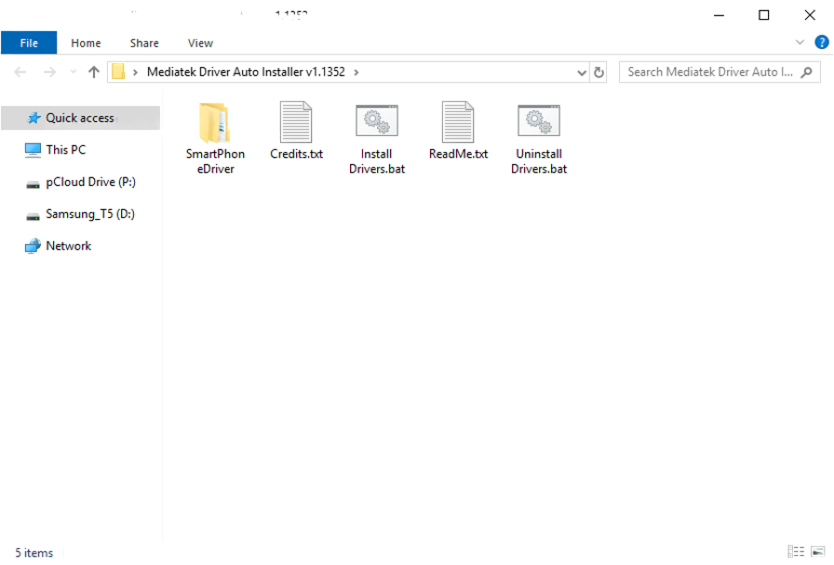
Open the Extracted Folder
After extraction, open the folder. You will see the following files inside: Install Drivers.bat, driver files, and a readme file.
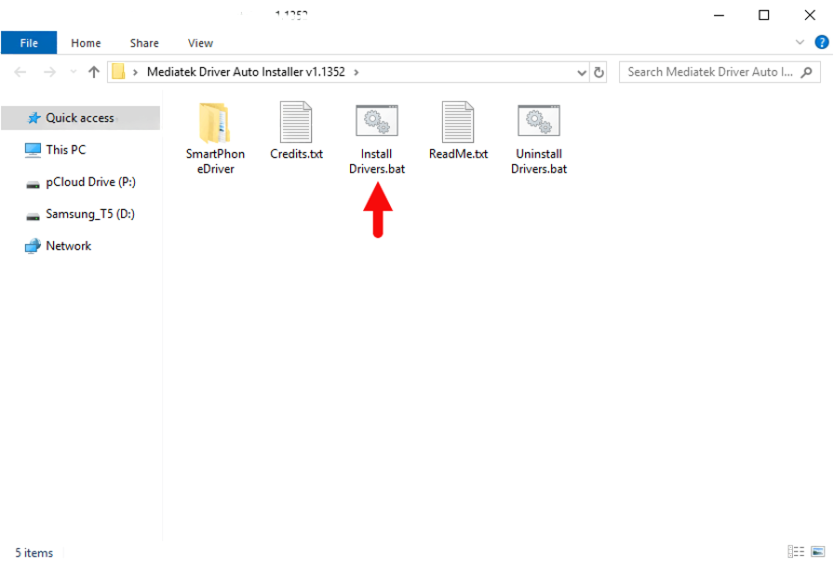
Run “Install Drivers.bat” as Administrator
Right-click on Install Drivers.bat and select “Run as Administrator”. This will launch the Driver Setup Dialog Box. Running as Administrator is important — otherwise the installation may fail.
Driver Setup Window Opens
The Command Prompt / Driver Setup window will open automatically. You will see a message asking you to press any key to begin the installation. The window will look like the screenshot below.
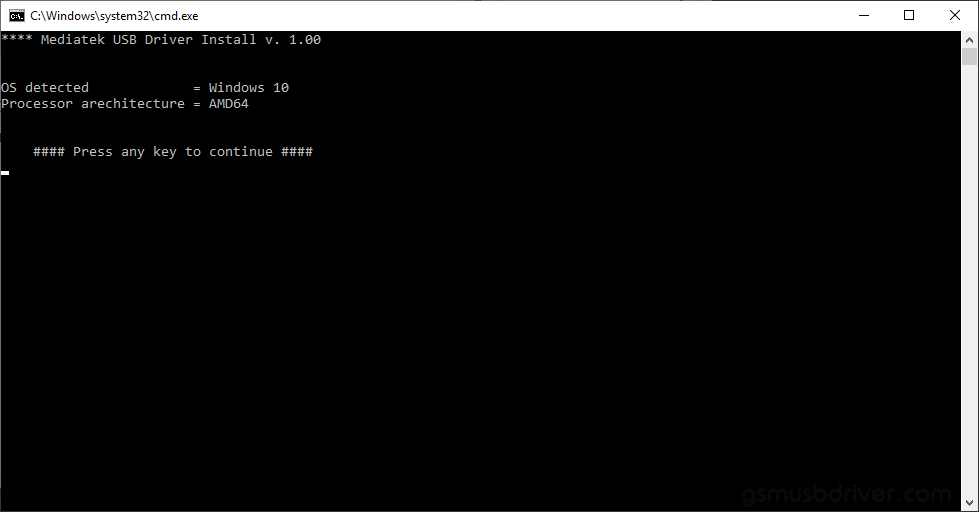
Press Any Key to Start Installation
Once the setup window is open, simply press any key on your keyboard (like the Space bar or Enter key) to begin the driver installation process. The tool will automatically detect your system and install the correct MTK drivers.
Installation Completed Successfully ✅
Once the installation finishes, you will see a “Driver Installation Completed” success message on the screen. This means the MediaTek USB drivers are now successfully installed on your Windows PC.
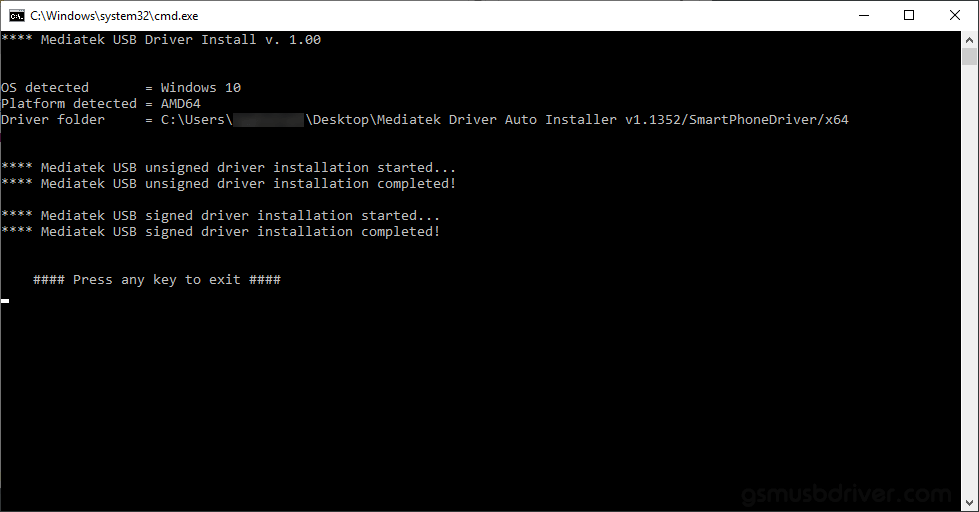
Press Any Key to Exit
After seeing the success message, press any key once more to close and exit the Setup window.
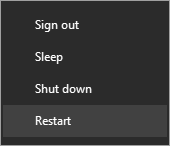
Restart Your Computer 🔄
Restart your Windows PC to complete the driver installation. This step is important — without restarting, the drivers may not work correctly.
🎉 Installation Complete!
Your MediaTek USB drivers are now successfully installed. You can now connect any MediaTek Android smartphone, feature phone, or tablet to your Windows PC without any driver errors.
Common Issues & Fixes
❌ Driver Signature Error
If you see a Driver Signature Error, you need to disable Driver Signature Enforcement in Windows. Go to Settings → Recovery → Advanced Startup → Restart Now → Troubleshoot → Advanced Options → Startup Settings → Restart → Press F7 to disable driver signature enforcement, then reinstall.
❌ Device Not Recognized After Install
Make sure you restarted your PC after installation. Also try a different USB cable or USB port. Enable USB Debugging on your Android device from Developer Options.
❌ Installation Fails or Freezes
Right-click on Install Drivers.bat and make sure you select “Run as Administrator”. Also temporarily disable your antivirus software during installation as it may block the driver files.
Supported Devices & Brands
The MediaTek Driver Auto Installer supports all Android devices running on MediaTek chipsets including:
Infinix
Itel
Xiaomi
Realme
Oppo
Vivo
Nokia
Motorola
Symphony
Walton
Lava
All MTK Devices
📌 Important Notes
- The MediaTek Driver Auto Installer is created and distributed by MediaTek Inc.
- Always run the installer as Administrator for best results.
- This installer works on Windows 7, 8, 8.1, 10, and 11 — both 32-bit and 64-bit.
- After installation, always restart your PC before connecting your device.
- If installation fails, temporarily disable your antivirus and try again.
✅ Conclusion
Installing MediaTek USB Drivers on Windows has never been easier with the MediaTek Driver Auto Installer. Just download, extract, run as Administrator, press any key, and restart — done in under a minute. Now you can flash Stock ROMs using our SP Flash Tool guide, use ADB/Fastboot, and connect your MTK device to PC without any issues. If you found this guide helpful, share it with other Android users!
Frequently Asked Questions (FAQ)
Q: Is MediaTek Driver Auto Installer safe to use?
Yes. It is an official tool from MediaTek Inc. and is completely safe. Always download from trusted sources like Android Root Room.
Q: Does it work on Windows 11?
Yes, the MediaTek Driver Auto Installer is fully compatible with Windows 11 (both 32-bit and 64-bit).
Q: What if my phone is still not detected after installation?
Enable USB Debugging on your phone (Settings → Developer Options → USB Debugging), try a different USB cable, and make sure you restarted your PC after installation.
Q: Which chipsets does this support?
It supports all MediaTek (MTK) chipsets including Helio series, Dimensity series, and older MT65xx, MT67xx series processors.
If you are flashing a Xiaomi MediaTek device and need to connect it to SP Flash Tool, you will also need the correct USB and ADB drivers. Check our guide: Download Xiaomi Redmi Note 14 5G USB Driver for Windows 10/11.